

Finding your way around
Once you’ve signed in, the sidebar on the left takes you to every part of Mint. The Mint logo is at the top; select it to go back to the Home page.
On a phone or small screen, the sidebar is hidden. Use the menu button at the top left to open it.
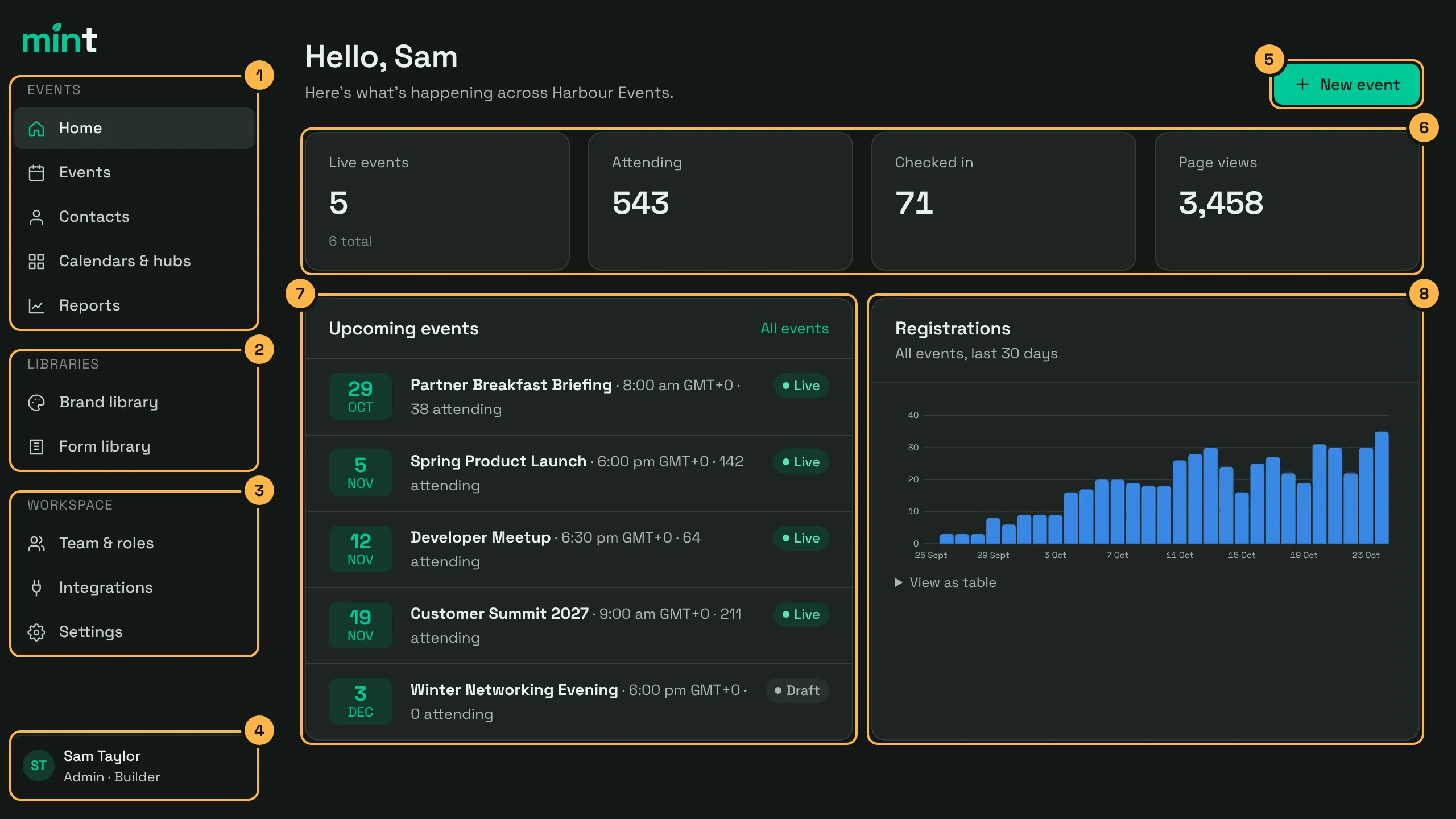
- The Events section of the sidebar. See Events
- Libraries. See Libraries
- Workspace. See Workspace
- Your name, which opens your profile. See Your account
- New event. See The Home page
- Key figures
- Upcoming events
- The Registrations chart
The sidebar
Section titled “The sidebar”The sidebar has three sections. You only see the items your role allows, so your sidebar may be shorter than a colleague’s. See Team and roles.
Events
Section titled “Events”| Item | What it’s for |
|---|---|
| Home | A summary of what’s happening across your organisation. See The Home page below |
| Events | Every event you can access. Open one to manage its registration, guests, emails and settings. See Creating an event |
| Contacts | One record per person across all your events, kept up to date by registrations, imports and edits. See Managing contacts |
| Calendars & hubs | Event calendars you can embed on your own website. See Calendars and hubs |
| Reports | Figures across every event you can access. See Organisation reports |
Libraries
Section titled “Libraries”| Item | What it’s for |
|---|---|
| Brand library | Your colours, fonts and logos, saved as brand kits to use on event pages, emails and more. See Brand library |
| Form library | Approved starting points for registration forms, such as opt-ins and privacy text. Only shown to people who manage the form library: Admin and Group Manager by default. See Form builder |
| Media library | Your website images and logos, uploaded once and reused on any page. See Media library |
Workspace
Section titled “Workspace”| Item | What it’s for |
|---|---|
| Team & roles | Who is in your organisation and what each person can do. See Team and roles |
| Integrations | Connect your CRM, messaging and automation tools. See Integrations |
| Settings | Your organisation’s details, email sender, data retention and suppression list. See Organisation settings |
Your account
Section titled “Your account”Your name is at the bottom of the sidebar, with your role and licence underneath. Select it to open your profile, where you can change your password and sign out. See Signing in.
The Home page
Section titled “The Home page”The Home page greets you by name and shows what’s happening across your organisation. Everything on it covers only the events you can access.
If your role can create events, the New event button is at the top right. See Creating an event.
Key figures
Section titled “Key figures”If your role can view reports, four figures are shown across the top:
| Figure | What it shows |
|---|---|
| Live events | How many events are live, with their website switched on. Underneath, the total number of events |
| Attending | Everyone with the status Attending, across all events |
| Checked in | Everyone who has been checked in, across all events |
| Page views | How many times your event pages have been viewed |
Upcoming events
Section titled “Upcoming events”The Upcoming events list shows up to six events that haven’t ended yet, soonest first. Archived events aren’t included.
Each row shows the date, the event’s name, its start time, how many people are attending, and its status (Draft, Live or Offline). Select a row to open the event, or select All events to see the full list.
If nothing is coming up, you see Nothing scheduled.
Registrations
Section titled “Registrations”The Registrations chart shows how many people registered each day over the last 30 days, across all your events. It counts people who are attending; people on a waitlist, or who have cancelled, aren’t included.
Light or dark mode
Section titled “Light or dark mode”Mint is dark by default, whatever your device’s own light or dark setting. To use light mode instead, select your name at the bottom of the sidebar, then under Appearance turn on Light mode. Turn it off to go back to dark.
Your choice is saved for that browser only, so you can choose again on another computer or phone.