

Signing in
You sign in to Mint with your email address and a password. There’s no public sign-up: organisations are created by Mint staff, and everyone else joins when an admin in their organisation invites them.
Accept an invitation
Section titled “Accept an invitation”When someone in your organisation invites you, you get an email saying they’ve invited you to your organisation, with an Accept invitation link. Your admin can also send you the link directly.
-
Open the invitation link
The page shows Join followed by your organisation’s name, and the email address you’re joining with. The email address is the one your admin invited, and you can’t change it here.
-
Check your name
Your name is filled in if your admin added it. Change it if you need to.
-
Choose a password
Enter a password in Choose a password. It must be at least 10 characters.
-
Select Accept invitation
You’re signed in straight away and taken to the Home page.
An invitation link works once. After you’ve accepted it, sign in with your email address and password instead.
Sign in
Section titled “Sign in”-
Go to the sign-in page
If you open any page in Mint while signed out, you’re taken to Sign in first.
-
Enter your email and password
Fill in Email and Password.
-
Select Sign in
You’re taken to the page you were trying to open, or to the Home page.
You stay signed in on that browser for up to 14 days, unless you sign out first.
If you see Email or password is incorrect, check both and try again. You also see this message if an admin has disabled your account; ask them to re-enable it.
Reset a forgotten password
Section titled “Reset a forgotten password”-
Select Forgot your password?
It’s under the Sign in button. If you’ve already typed your email address, it’s carried over.
-
Enter your email and select Send reset link
Use the email address you sign in with. Mint shows Check your email, whether or not that address has an account.
-
Open the link in the email
The email has a Choose a new password link. The link works once and expires after 60 minutes. If you ask for more than one, only the newest link works.
-
Choose a new password
Enter it in New password (at least 10 characters) and again in Confirm new password.
-
Select Save password and sign in
You’re signed in on this browser. You’re signed out everywhere else, for example on another computer.
If the page says This link no longer works, it has been used or has expired. Select Send a new link to start again.
Change your password
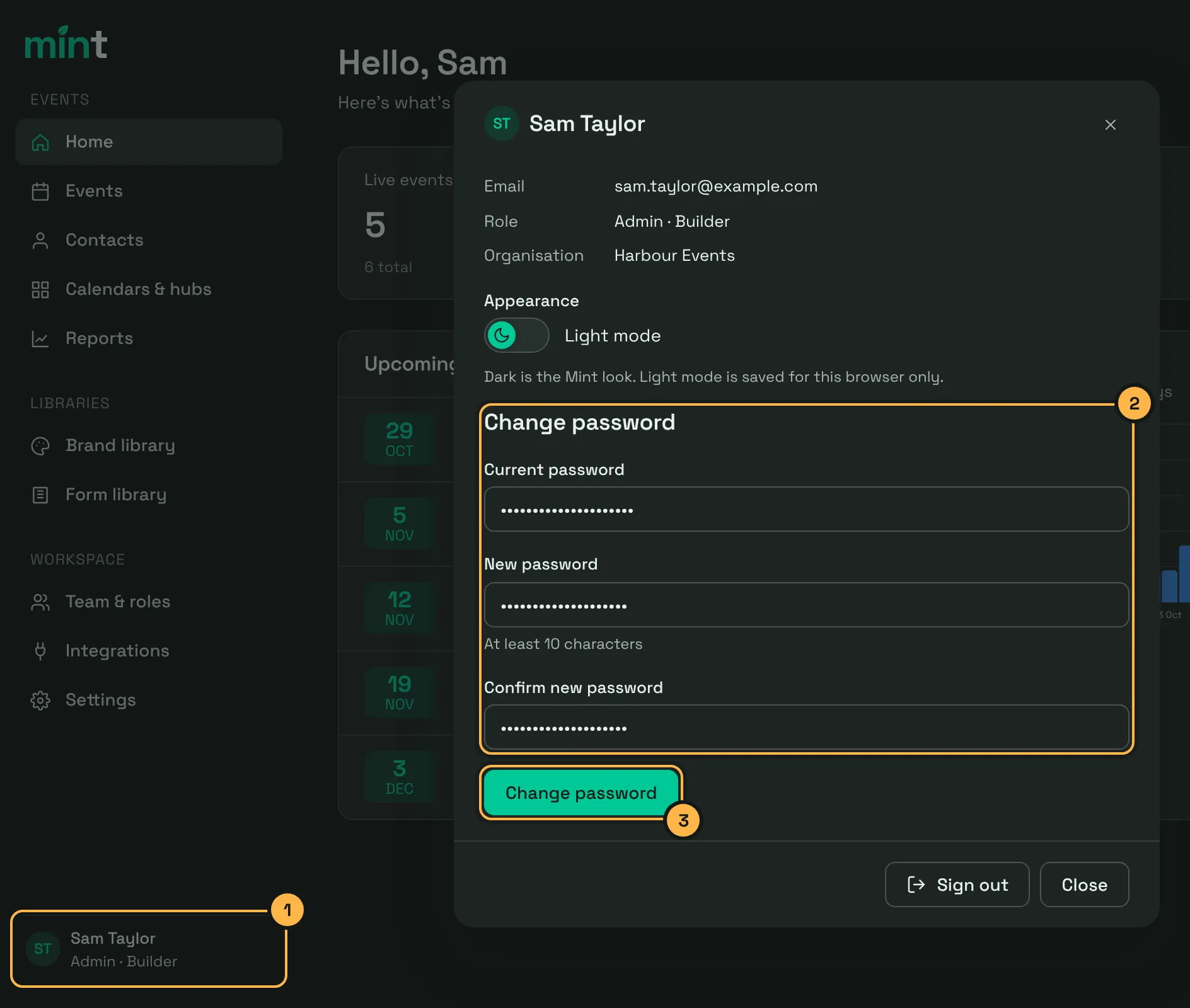
Section titled “Change your password”The numbers in the picture match the steps below.
-
Open your profile
Select your name at the bottom of the sidebar. Your profile opens, showing your email, role and organisation.
-
Enter your current and new password
Under Change password, fill in Current password, then your New password (at least 10 characters) twice, in New password and Confirm new password.
-
Select Change password
Your password is changed, and you’re signed out everywhere else. You stay signed in on this browser.
Sign out
Section titled “Sign out”Select your name at the bottom of the sidebar to open your profile, then select Sign out at the bottom of the profile.
This signs you out on this browser only. To sign out everywhere, change your password.